

How to switch your seat on iPad/iPhone (scroll down for instructions for Mac and Windows):
 | Touch your nickname on the bottom hand tray. |
 | A small screen with your mini stats comes up. Touch 'Leave Seat' and you are now kibitzing at the table. |
 | Touch on any of the available seats (they are labeled "Robot" or "Locked"). Touch "Yes" on the prompt, and you are seated. |
How to switch your seat on Mac or Windows:
 | Click your nickname on the bottom hand tray. |
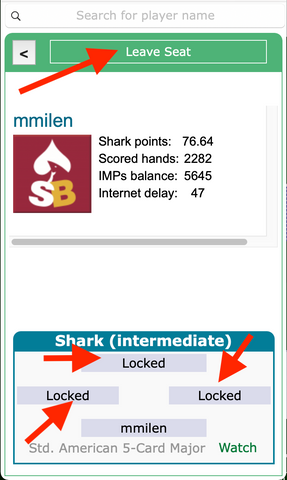 | This pop-up screen comes up. You can click on any of the available seats at the bottom of the screen ( labeled "Robot" or "Locked"), and you will be seated. To kibitz at the table click "Leave Seat" at the top of that screen |


