

To add a file to a classroom module using a code in the Shark Bridge app, follow these steps:
- Open Shark Bridge App: Start by opening the Shark Bridge app from its icon on your device.
- Access Classroom Hands Menu: In the app, click or touch on the "Classroom hands" menu. This action will bring up a screen similar to the one below.
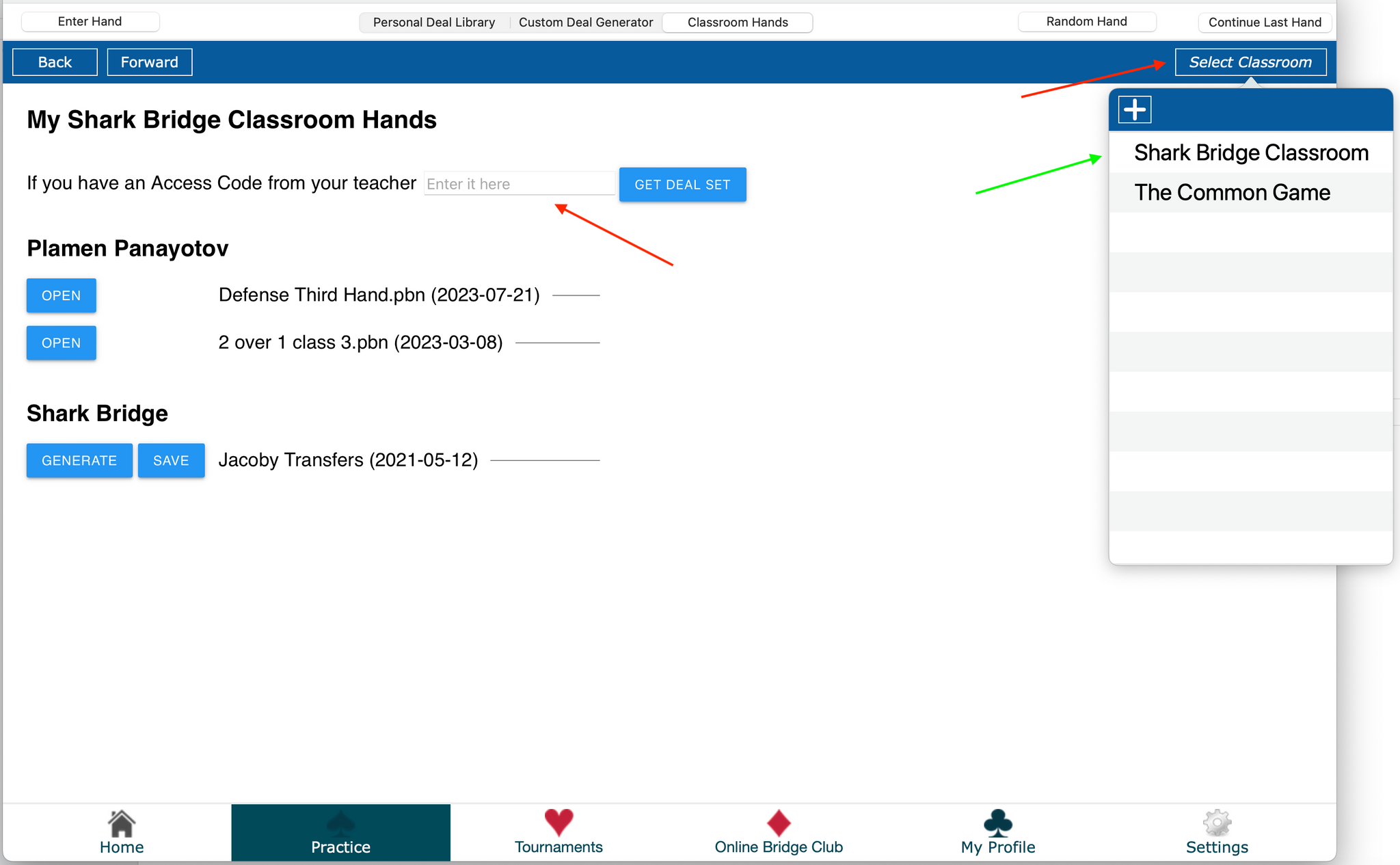
- Select Classroom (if needed): By default, the Shark Bridge Classroom should appear. If you're connected to different classrooms, you can switch by clicking “Select classroom” and then choosing “Shark Bridge Classroom.”
- Enter the Code: Find the box that prompts you to “enter it here” and type in the provided code.
- Get the Deal Set: After entering the code, click on the button labeled “Get Deal set.”
- Receive Confirmation: Upon successful entry of the code, you should see a message indicating that you have received a file. The name of the file will be displayed.
- Open the File: Click on the blue “Open” button. This action will open the file in your deal library.
- View File Details: In your deal library, you can view all details of the file, including hands, auction, and play (if available). You can then decide which board you want to play.


