
How to load hands to Shark's online bridge table

· Updated
Important NOTE: When playing your own hands on Shark's online bridge table, the robots will automatically switch to Classroom skill level, and the table will be designated as a practice table.
 | Once you are at the table, click on the settings button in the top right corner, and options menu will come down. Select "Upload Deal Set" to choose deals from your Personal Deal Library. |
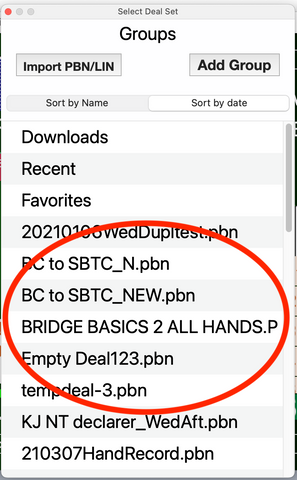 | Choose the set of deals that you would like to play. |
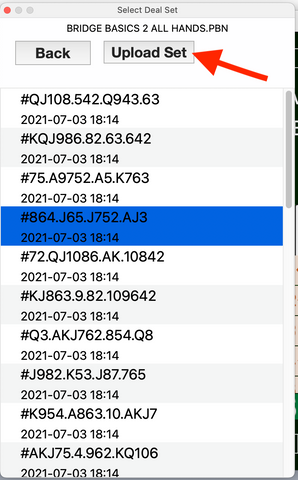 | Select the hand you would like to start with and choose “Upload Set.” The hand will load, and you can start playing. |
 | Select "Upload Classroom hands" to play deals from your teacher. |
Related posts

Shark app offers a choice of several bidding systems - SAYC, Beginner SAYC and 2/1 Game Force. Click here for SAYC Convention card: Click her...


To add a file to a classroom module using a code in the Shark Bridge app, follow these steps: Open Shark Bridge App: Start by opening the Shark ...
Sources: You can obtain PBN or LIN files from instructors, The Common Game, or BBO. For iPhone/iPad Users: Locating the File: Access the email w...